To improve the discoverability and usability of processes within the Syntasa development environment, Contextual Help Tooltips have been introduced. This feature enables authors of User Defined Processes (UDPs) and system administrators to provide detailed descriptions that appear directly within the process palette, helping users better understand process functionality during workflow creation.
Feature Overview
When building workflows in the Syntasa canvas, users often need to understand the specific functionality of a process before dragging it onto the workspace. The Contextual Help feature provides several enhancements that improve usability and collaboration across teams.
Instant Documentation
Hovering over a process in the palette displays a tooltip containing the purpose of the process along with relevant usage instructions. This allows users to quickly understand process behavior without needing to leave the canvas environment.
Author Communication
UDP authors can now communicate the intent, logic, and expected behavior of their custom processes directly to other team members through embedded descriptions.
Standardized Descriptions
A comprehensive library of contextual tooltips is now available for all built-in Syntasa processes, ensuring a more consistent and informative user experience across the platform.
How It Works
Accessing Tooltips
Within the Process Palette located on the left sidebar of the App canvas, every process now includes a More Info icon.
Visibility
The information icon becomes visible when hovering over a process name in the palette.
Activation
Hovering over the information icon triggers a tooltip containing the associated process description.
Behavior
To maintain a clean and distraction-free workspace, tooltips are automatically suppressed while a process is actively being dragged onto the canvas.
UDP Descriptions
For User Defined Processes (UDPs), tooltip content is dynamically retrieved from the UDP metadata.
Description Handling
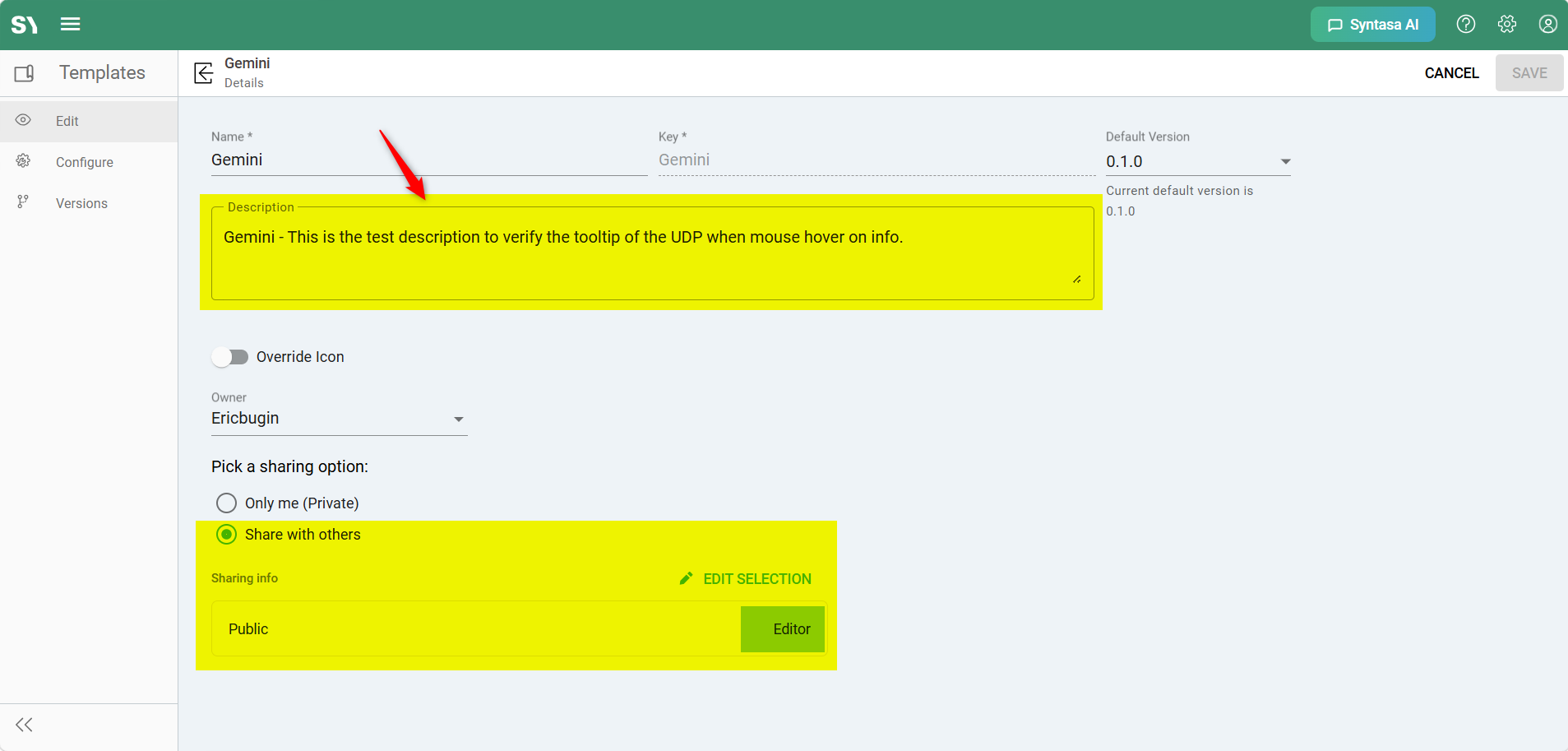
- If the author has provided a Description during UDP creation, that description is displayed within the tooltip.
- If no description is available, the tooltip defaults to displaying the UDP name.
This ensures that every UDP provides at least a minimal level of contextual information to end users.
Built-in Process Descriptions
All standard Syntasa processes now include authoritative descriptions to help users quickly understand their purpose and capabilities.
Example Process Descriptions
| Process | Description |
|---|---|
| AA Loader | AA (Adobe Analytics) Loader ingests raw Adobe Analytics clickstream data and parses and outputs the data into numerous resulting tables. |
| BQ Processor | BQ Process connects to a BigQuery connection enabling users to write SQL queries to retrieve data from BQ. |
| Transform | A Transform is a core, general-purpose data transformation component within the Syntasa platform. It allows users to perform complex data manipulation, including column mapping, joins, filtering, and aggregations. |
| Spark Learn | Spark Learn is used to configure, productionize, and manage custom Spark-based machine learning training code. It is primarily responsible for fitting a model to a training dataset and saving that model for later use in scoring processes. |
Best Practices for UDP Authors
To improve clarity and usability for team members consuming custom processes, UDP authors should follow these documentation guidelines.
Be Concise
Use the opening sentence to clearly describe what the process does.
Define Inputs and Outputs
Briefly explain the type of data the process expects as input and the data it produces as output.
Note Dependencies
If the UDP depends on specific connections, configurations, or preceding processes, include those details in the description to help users correctly implement the process within workflows.
Technical Implementation Details
The tooltip framework is implemented using a shared CommonCustomTooltipDirective and a centralized ProcessConstants library.
Dynamic Positioning
Tooltips are horizontally aligned with the process palette and vertically centered relative to the mouse cursor to provide optimal readability and accessibility.
Safety and Security
The system leverages Angular’s DomSanitizer to safely render descriptions while protecting against cross-site scripting (XSS) vulnerabilities.